
Free Image to Image AI Generator
Upload a reference image, describe the change, and create a new version online.
Image editing examples
How to Use the Image to Image Generator
Image to image generation starts with an existing visual and a written editing instruction. Upload the reference, describe only what should change, and generate a new version.
- 1
Upload a reference image
Add a photo, illustration, screenshot, or previous AI result in JPG, PNG, or WebP format. Each image can be up to 10MB.
- 2
Describe what should change
Write a direct editing prompt such as “keep the pose, use watercolor style, and make the light warmer.” Mention what should stay unchanged.
- 3
Generate, review, and refine
Create the new image, compare it with the reference, then adjust the prompt or reuse the result as a reference for another edit.
Image to Image Examples
See how a reference image and a focused prompt can change color, remove an object, shift the lighting, or transform a portrait. Select an example to try the same edit.
What You Can Create with Image to Image AI
Restyle a photo or illustration
Turn a photo into watercolor, editorial art, a 3D render, or another visual style while keeping its subject and composition recognizable.
Replace a background or setting
Move a product into a studio, place a portrait in a new environment, or rebuild the setting without recreating the whole image.
Change colors, light, and mood
Recolor a product, move a scene from day to night, or adjust the atmosphere while preserving the original framing.
Add, replace, or remove objects
Describe the object that should appear or disappear. The generator redraws the surrounding area so the edit belongs in the scene.
Keep a subject consistent
Use clear reference images to preserve recognizable character, product, or design details across a new scene or visual direction.
Combine multiple references
Guide the subject, setting, and style with separate reference images, then explain in the prompt how those visual sources should work together.
Transform an Image Without Starting Over
Use the original image as structure, make a focused change with natural language, and keep refining the same idea from one result to the next.
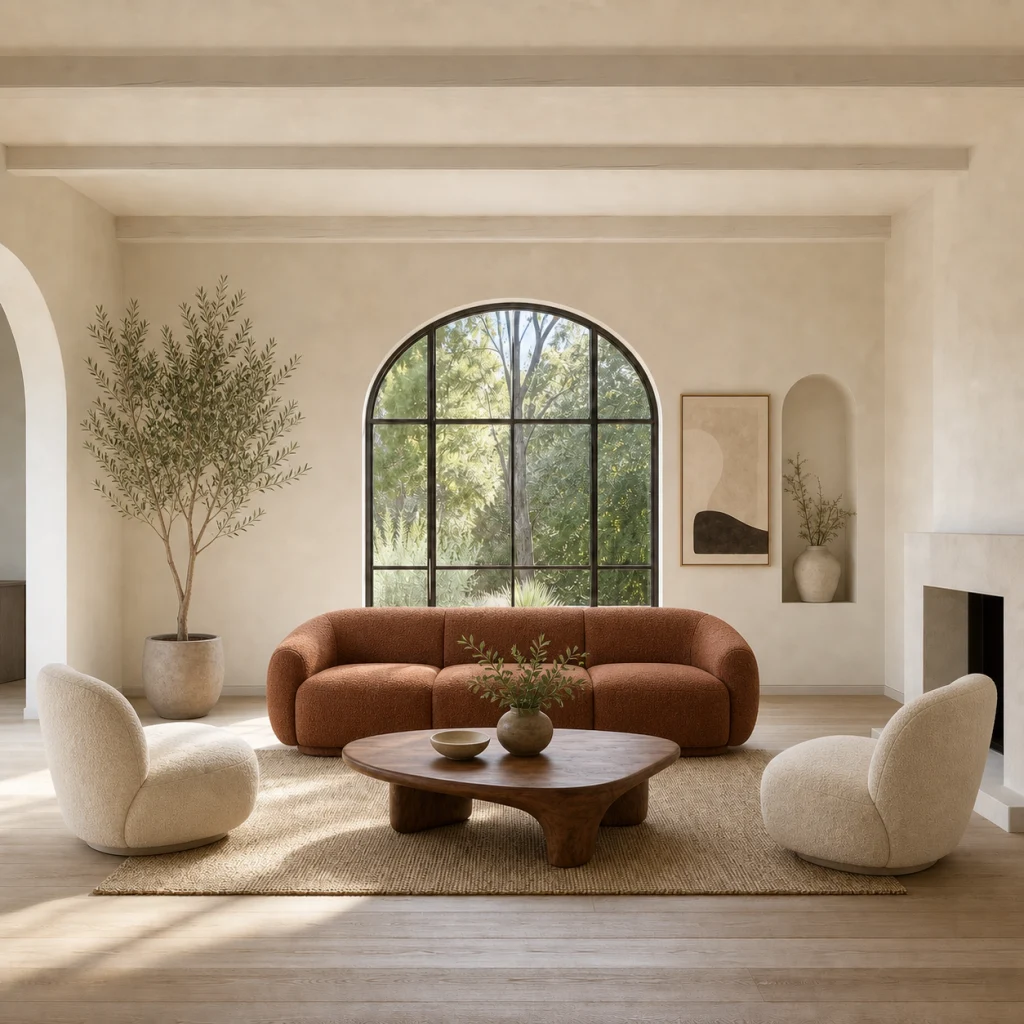
Keep the subject, explore a new direction
A reference image gives the generator visual information that a text prompt would have to rebuild from scratch. Preserve the subject and composition while testing a new setting, material, mood, or art style.
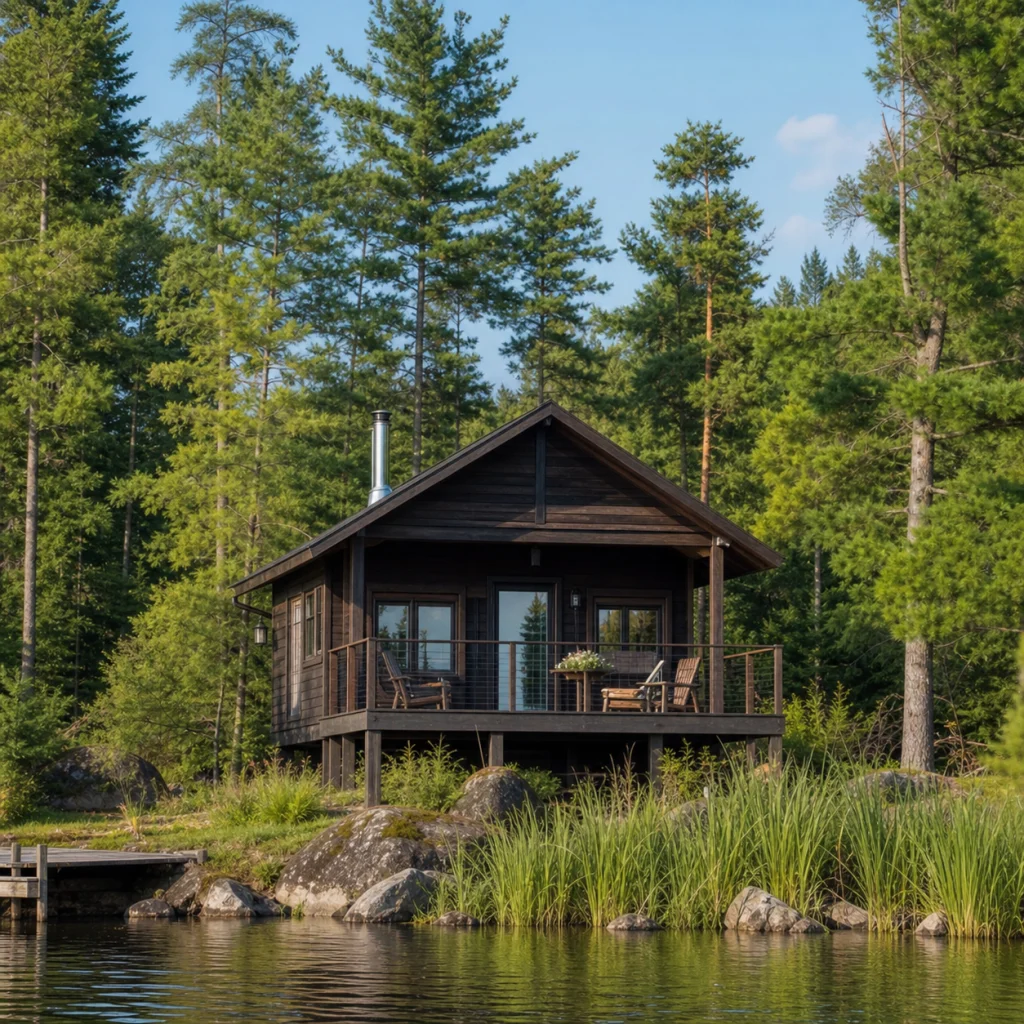
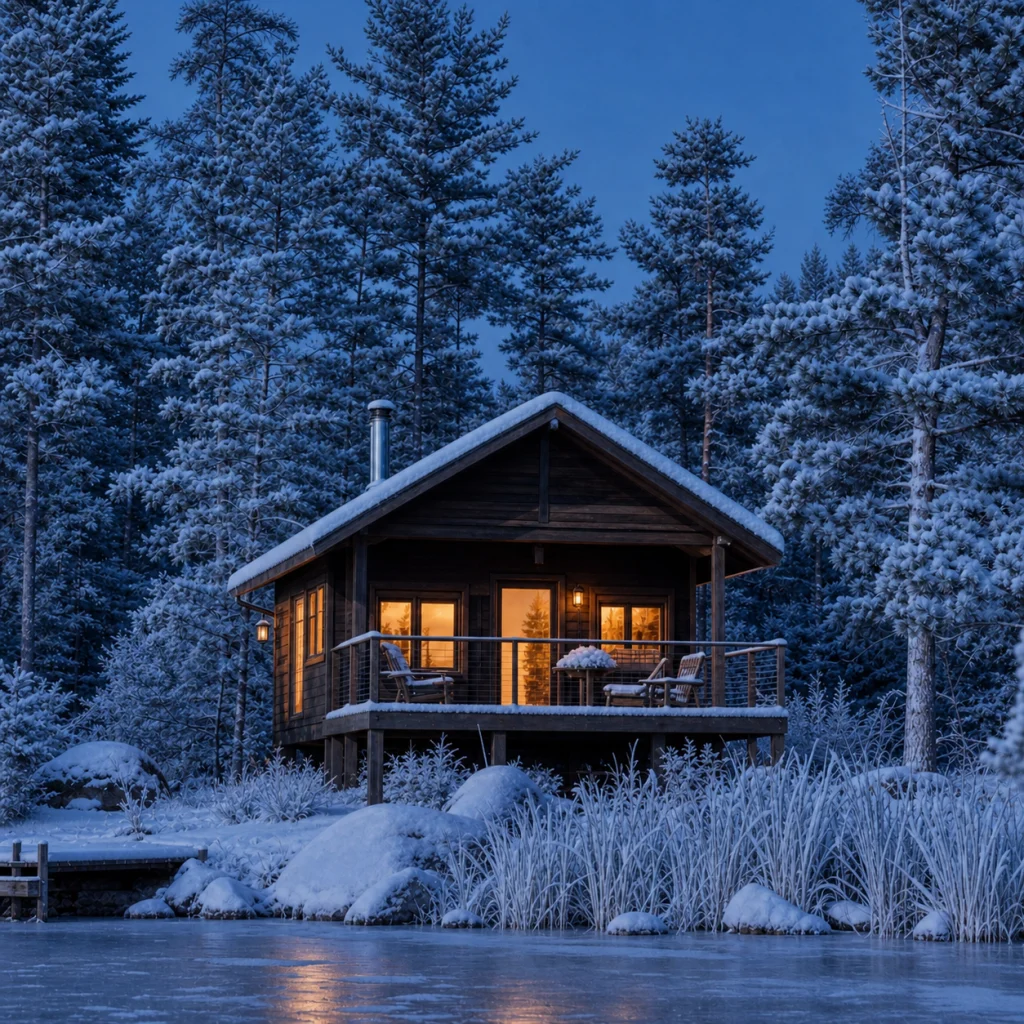
Change one detail and protect the rest
A focused edit prompt can remove an object, recolor a product, or change the lighting while asking the generator to retain the camera angle, layout, shadows, and surrounding details.
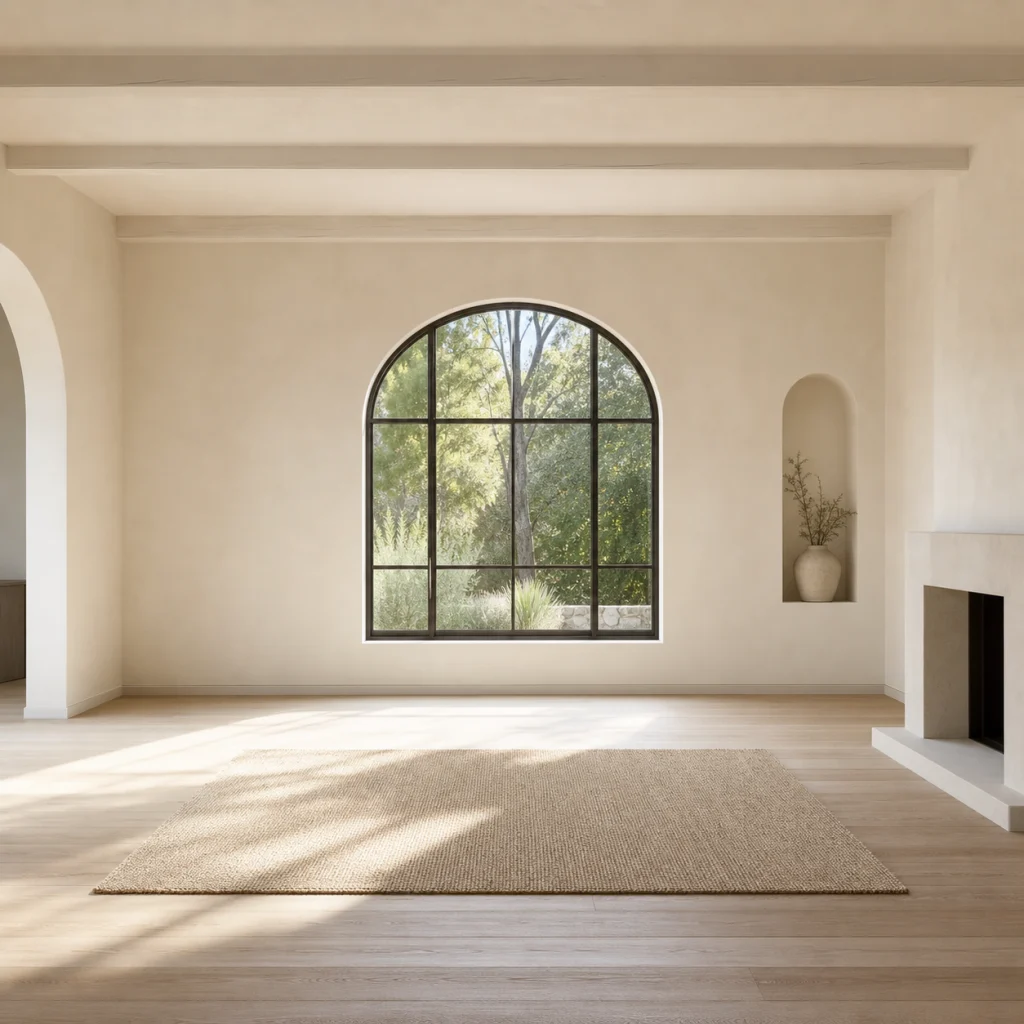
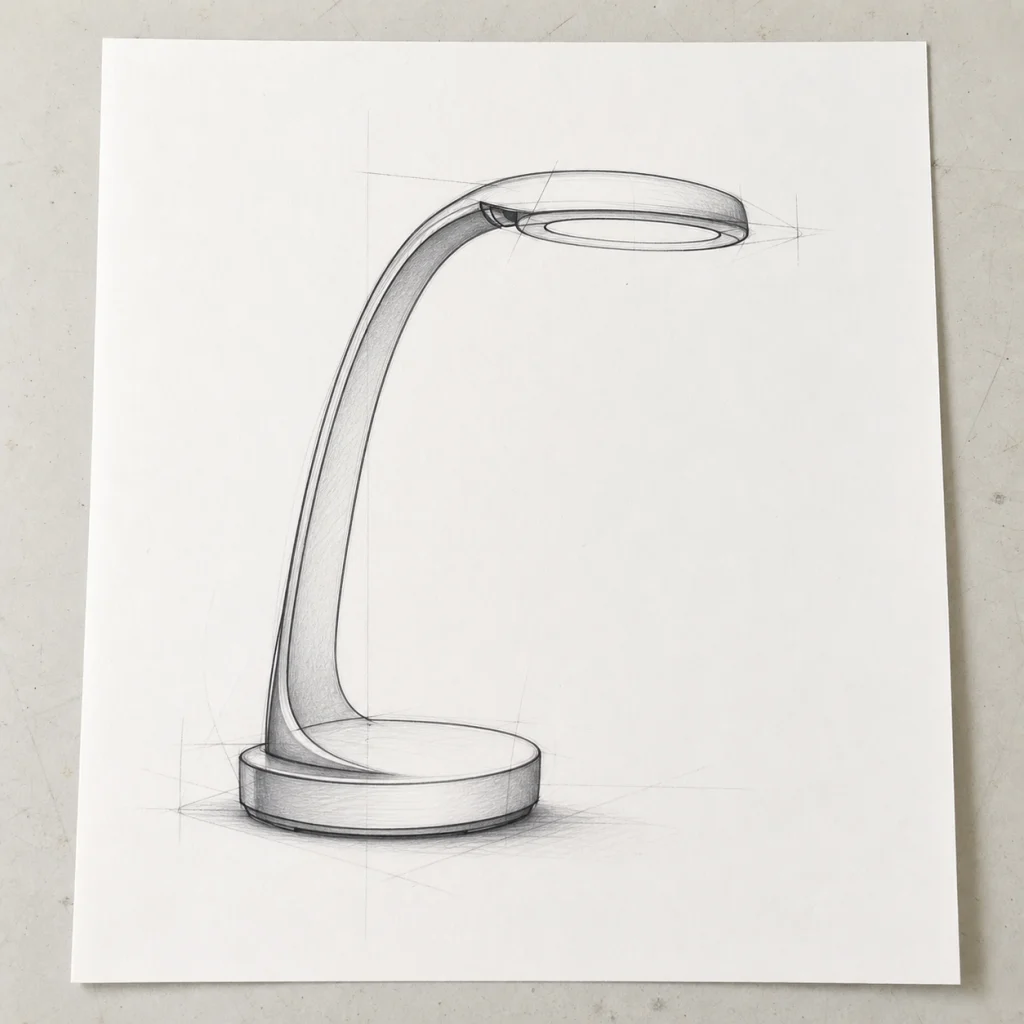
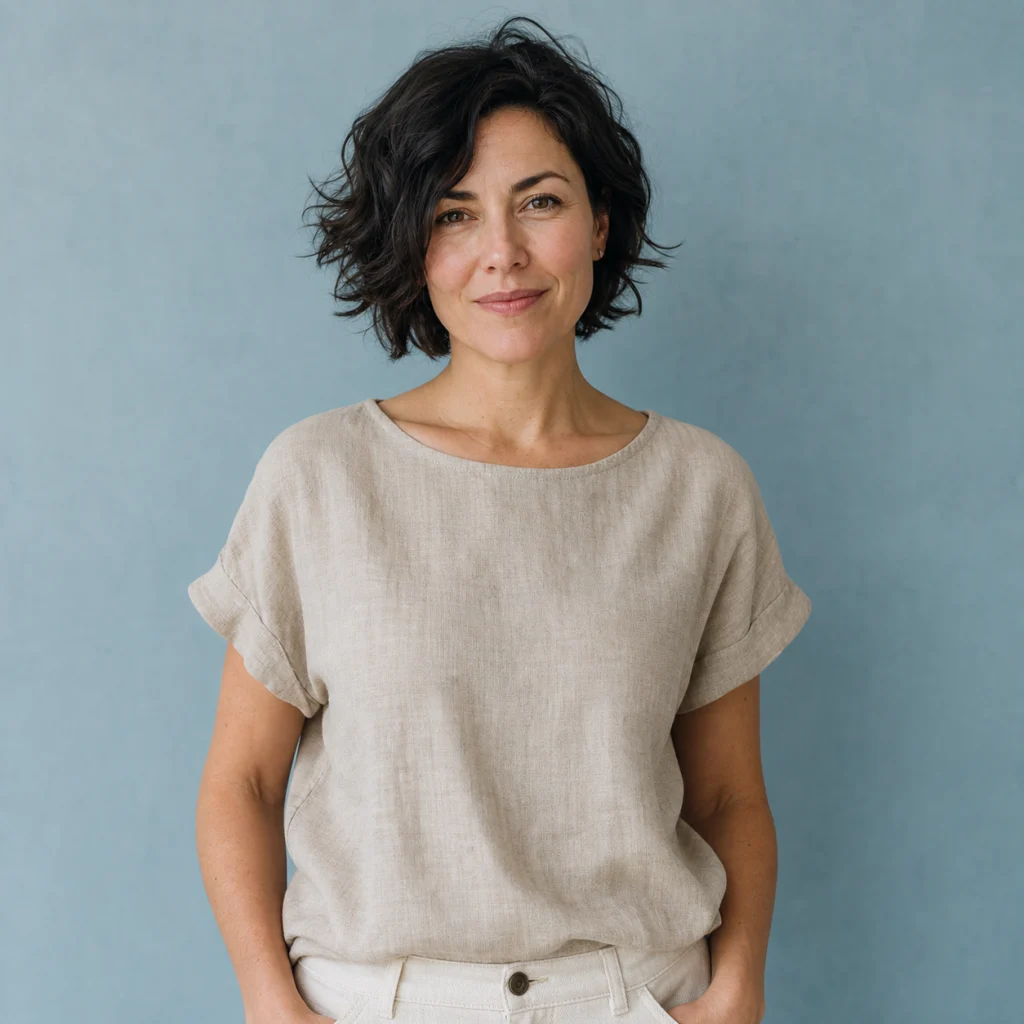
Use one reference or combine several
Start with one source image for a direct transformation, or add more references when the subject, environment, and visual style need separate guidance. The selected model determines the reference limit.
Image to Image Generator FAQ
Answers about reference images, editing prompts, free credits, supported formats, result similarity, and private image storage.
What is an image to image AI generator?
An image to image AI generator creates a new visual from an existing reference image and a text instruction. It uses the reference for subject, composition, or style while applying the changes described in your prompt.
How is image to image different from text to image?
Text to image starts from a written description alone. Image to image also receives a visual reference, so it can preserve recognizable subjects, layouts, colors, or poses instead of rebuilding every detail from words.
Can I use the image to image generator for free?
Yes. New accounts receive free credits, and the required credits are shown before each generation. You can use those credits to upload a reference and try your first image edit online.
Will the generated image stay close to the reference?
The result usually stays closer when the prompt requests one focused change and clearly names what should remain unchanged. A full style or scene transformation gives the model more freedom to reinterpret the source.
How do I write a good image editing prompt?
Describe the change directly, then list important details to preserve. For example: “remove the bicycle, rebuild the garden naturally, and keep the bench, camera angle, lighting, and shadows unchanged.”
Which image formats and reference limits are supported?
You can upload JPG, PNG, or WebP images up to 10MB each. The available models support up to three references, and the uploader automatically follows the selected model's limit. Uploads and results stay private to your account.
Create a New Image from Your Reference
Upload a picture, describe the transformation, and use free credits to generate a new version online.