
Image Expander
Choose a new aspect ratio and let AI continue the scene beyond the original frame instead of cropping away the subject.
Try an example
How to Expand an Image with AI
AI outpainting extends the scene outside the original borders. Keep the subject intact while creating a wider banner, taller post, or room for layout copy.
- 01
Upload a clear source image
Add one JPG, PNG, or WebP. A clear subject and a well-exposed image give the model more useful detail to work with.
- 02
Choose the new aspect ratio
Select square, landscape, portrait, widescreen, or vertical framing. The original stays anchored while AI creates the missing surrounding scene.
- 03
Run the tool and download
Start the edit, compare the before and after, then download the finished image or find it later in My Creations.
The other tools
Continue editing the same image with another focused AI tool.
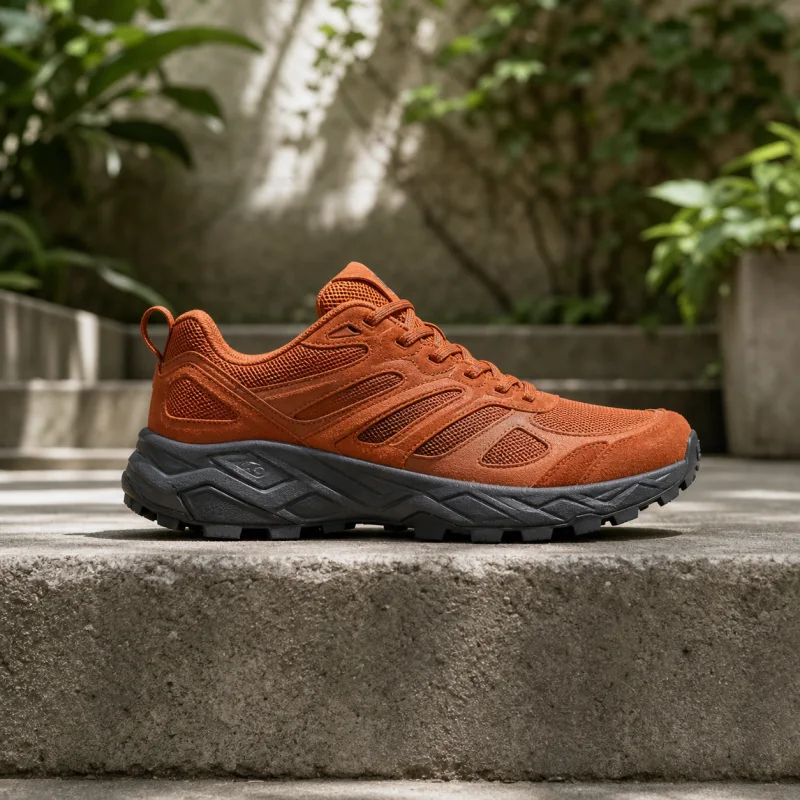
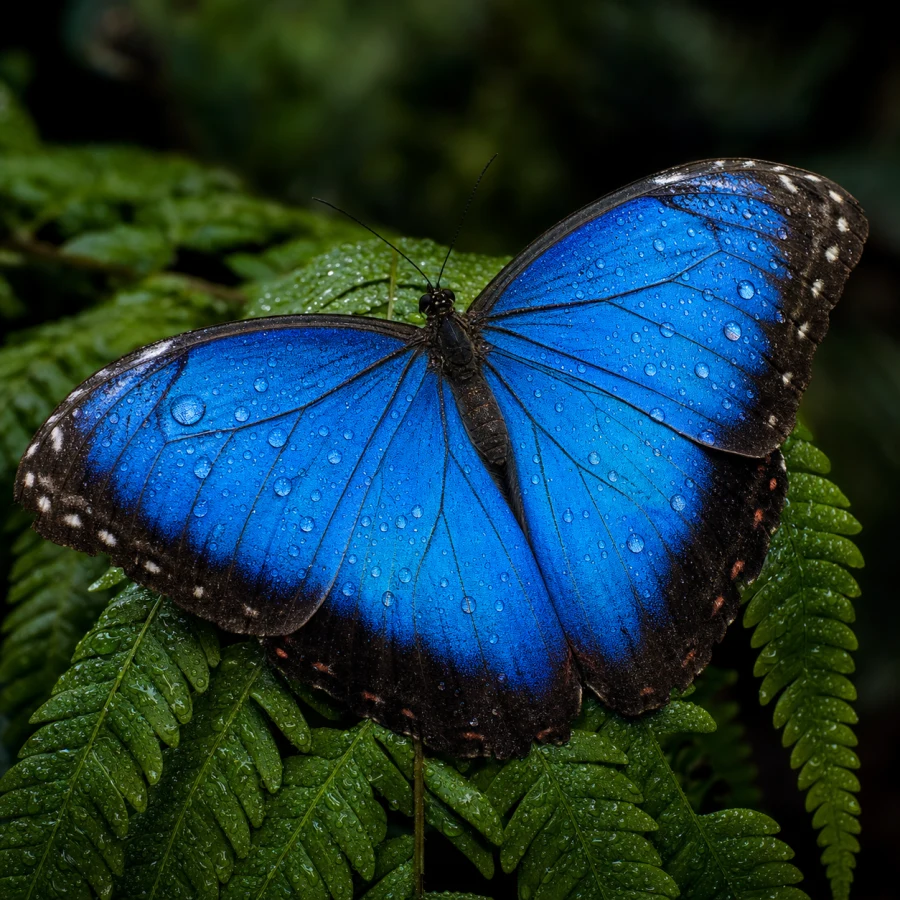
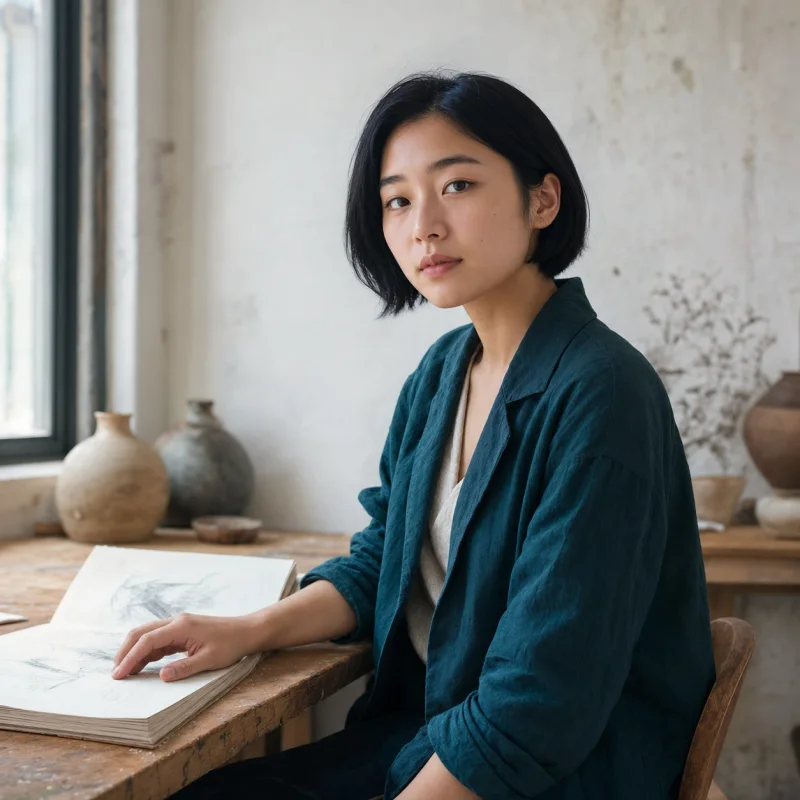
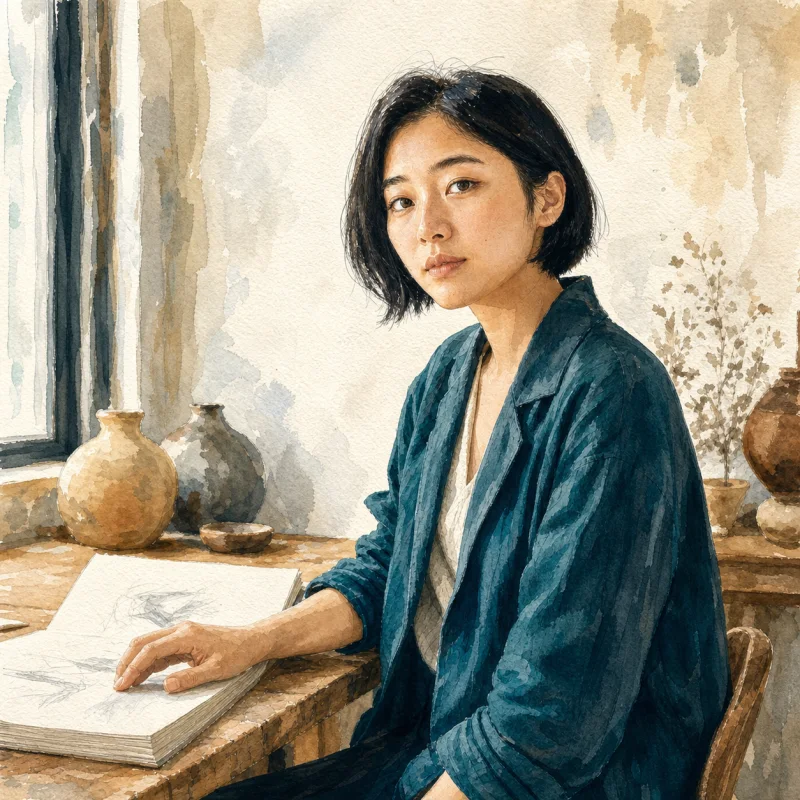
Image expander FAQ
Answers about AI outpainting, aspect ratios, cropping, image quality, good source images, cost, and private storage.
Does it stretch or crop my image?
Neither. The original image stays anchored in the frame while AI generates new surrounding pixels that continue its lighting, perspective, and background.
Which aspect ratios can I create?
Choose 1:1, 4:3, 3:4, 16:9, or 9:16. Pick the format you need before running the tool.
What does one expansion cost?
4 credits, charged only when the expanded image is returned. A failed run costs nothing.
What happens to the image I upload?
It is stored so the model can process it and the result can stay in your private library. It is never added to the public gallery.
What is AI outpainting?
Outpainting is the process of generating new visual content beyond an image's existing edges. The model continues the background, lighting, perspective, and textures into a larger canvas.
Which source images expand best?
Images with a clear subject, consistent background, and visible lighting direction are easiest to continue. Complex repeated patterns and heavily cropped faces may need another pass.
Expand an Image beyond the Original Frame
Upload a square, portrait, or landscape image and extend it into the aspect ratio your banner, post, presentation, or product page needs.