
GPT Image 2 Image Generator
Create prompt-faithful images with accurate text, placement, and layouts.
Prompts to try with GPT Image 2
Browse GPT Image 2 examples for editorial layouts, diagrams, product images and prompt-faithful illustration. Click a result to load its full production prompt into the generator.
What GPT Image 2 is good at
It follows instructions
Three objects means three, top-left means top-left, and "leave room for a headline" leaves room. Specific briefs land closer on the first try.
Layouts and covers
Magazine covers, poster grids and title cards come back as compositions with real margins and hierarchy, not a picture with text dropped on top.
Diagrams and charts
Labelled blocks, arrows, legends and captions hold their structure, which makes it the one to reach for when the image has to explain something.
Clean product shots
A single object, even lighting, a soft contact shadow and a genuinely white background — the e-commerce shot most models over-decorate.
Flat illustration
Isometric scenes, editorial spot art and two-colour vector styles stay consistent across a set, so a whole page of them looks like one commission.
Aspect ratio control
Pick 1:1, 16:9, 9:16, 4:3 or 3:4 before generating and it frames the shot for that, rather than you cropping it afterwards.
Why use GPT Image 2 for prompt-faithful images and layouts?
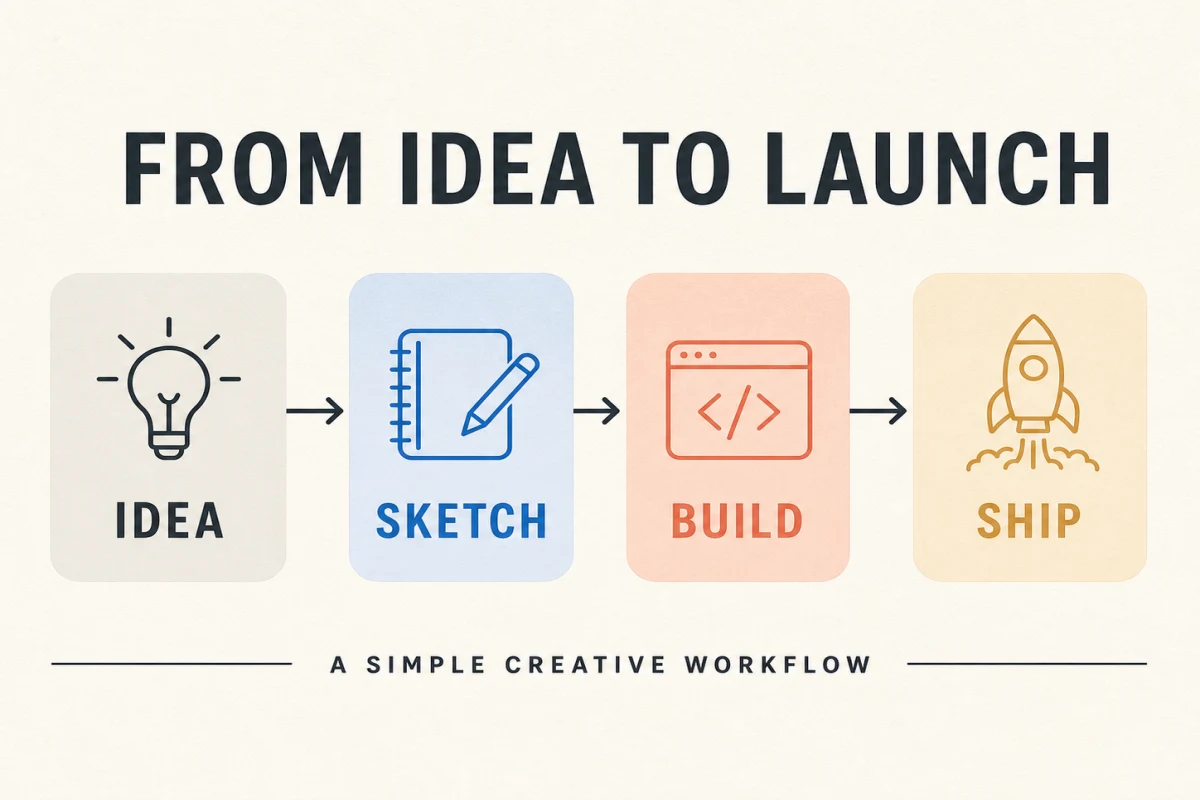
GPT Image 2 is the precision-first model in this generator. It handles long instructions, object counts, relative placement, typography and structured layouts with fewer compromises, which makes it useful for magazine covers, infographics, clean product shots and image edits where the written brief must stay in control.
How to write a GPT Image 2 prompt
A structured prompt pays off here. Separate what the image contains from how it is arranged and how it should look, then lock any required text or counts.
Specify counts and relationships
Write “exactly four blocks connected left to right” or “one chair centered below the headline”. Concrete relationships make instruction following measurable.
Separate content, layout and style
Describe the subject first, then the page hierarchy or camera framing, and finish with medium, palette and lighting. This prevents visual style from obscuring the brief.
Lock required copy verbatim
Put exact text in quotation marks, say where each line belongs and prohibit extra words. Short, deliberately placed copy is more reliable than an open-ended request for a poster.
The other models
Try the same prompt with another AI image model.
GPT Image 2 FAQ
What people ask before their first image on GPT Image 2.
What is GPT Image 2?
It is OpenAI's precision-first image model. It reads a long, specific brief and renders what the brief actually says, which is what makes it good at layouts and diagrams.
How much does one image cost?
8 credits per generated image, charged when the image is delivered. It is the highest-cost model here. A generation that fails is not charged.
When should I use it instead of Nano Banana Pro?
When the layout and the instructions matter more than photographic realism — covers, diagrams, flat illustration, e-commerce shots. For a dense photographic scene or perfect text on a photo, Nano Banana Pro is the better bet.
Can it render text inside images?
Yes, and it is one of the two strongest here. Quote the exact words, keep them short and say where they belong. It is particularly good when the text is part of a layout rather than sitting on a photograph.
Do I need an OpenAI account or an API key?
No. The model runs on our side and is charged in the same credits as everything else. Nothing to install, no key to paste, no second subscription.
Can I generate several images at once?
Not on this model — it renders one image per run, so the count selector is hidden. FLUX Schnell takes batches of up to four.
Give GPT Image 2 a brief
The more specific you are, the closer the first render lands.